

Managing user profiles in Azure Virtual Desktop (AVD) can be a balancing act—especially when you’re striving to provide consistent, high-performing virtual environments for end users. FSLogix steps in to simplify this process, helping you avoid issues like slow logins, profile corruption, and inconsistent application data.
In this guide, we’ll explore how FSLogix fits into AVD, common challenges you might encounter, and expert-level troubleshooting and fine-tuning techniques to ensure a stable and efficient experience for everyone.
Why FSLogix Is Essential for AVD
Key Benefits of FSLogix
- Profile Containers: Stores user profiles in VHD(X) files on a network share, reducing overhead and improving login times.
- Office 365 Containers: Optimizes data caching for apps like Outlook and Teams.
- Java Redirection: Allows you to run multiple Java versions without version conflicts.
By attaching user profiles as virtual disks, FSLogix provides:
- Faster Logins: Minimizes profile load time and speeds up user authentication.
- Improved Reliability: Reduces risk of corruption and application data mishaps.
- Persistent Data: Ensures personalized settings and documents follow users across sessions.
Setting Up FSLogix for Optimal Performance
Prerequisites
- Storage Configuration
Set up Azure Files or Azure NetApp Files for fast, reliable profile storage. - Permissions
Grant correct NTFS and share permissions on the storage location, ensuring users can access their profile containers. - FSLogix Installation
Install FSLogix on all session hosts in your AVD environment. - Antivirus Exclusions
Configure antivirus solutions to exclude FSLogix VHD(X) files and related paths.
Installation & Configuration Steps
-
Download & Install
- Obtain the latest FSLogix installer from Microsoft.
- Run
FSLogixAppsSetup.exeon each session host.
-
Set Profile Container Registry Keys
- Open Registry Editor and navigate to:
HKEY_LOCAL_MACHINE\Software\FSLogix\Profiles - Create or edit the following values:
- Enabled (DWORD) =
1 - VHDLocations (MULTI_SZ) =
\\YourFileShare\ProfilePath - SizeInMBs (DWORD) =
30000(example size; adjust as necessary)
- Enabled (DWORD) =
- Open Registry Editor and navigate to:
-
Configure FSLogix Group Policy
- Use the FSLogix ADMX templates to manage settings centrally.
- Exclude large or unnecessary files (e.g., temp logs) from profiles to prevent bloat.
-
Select an Appropriate Storage Option
- Azure Files: Cost-effective and suitable for many workloads.
- Azure NetApp Files: Offers lower latency and higher throughput for more demanding environments.
Common FSLogix Issues and How to Resolve Them
Below are frequent issues admins encounter when using FSLogix with AVD, along with practical troubleshooting steps.
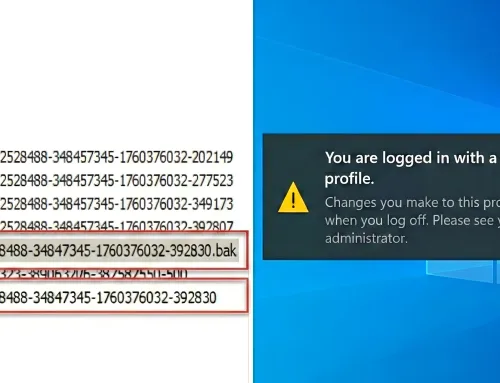
1. Profile Fails to Load or Loads as a Temporary Profile
- Symptoms: Users see a temporary profile or experience login failures.
- Troubleshooting:
- Check Event Logs under Applications and Services Logs > FSLogix for specific errors.
- Verify permissions on the profile VHD(X) files. Users should have Full Control.
- Confirm no other sessions are locking the VHD(X).
- Consider Cloud Cache for redundancy and availability.
2. Slow Login Times
- Symptoms: Delayed login processes.
- Troubleshooting:
- Optimize storage with SMB Multichannel or high-performance storage options.
- Enable FSLogix disk compaction (
VolumeType = vhdx). - Exclude unnecessary cache files (like browser caches or large temp folders) from profile containers.
3. Profile Corruption
- Symptoms: Missing settings, application errors, or repeated file corruption messages.
- Troubleshooting:
- Run
chkdskon the VHD(X) to detect and repair file system issues. - Restore from backup or recreate the profile if irreparable.
- Enable
DeleteLocalProfileWhenVHDShouldApplyto remove outdated local profiles that can cause conflicts.
- Run
4. Profile Containers Not Attaching
- Symptoms: Users get default profiles instead of their personalized settings.
- Troubleshooting:
- Ensure FSLogix services are running and set to Automatic.
- Double-check profile container path correctness in the registry and Group Policy.
- Confirm network share permissions are configured correctly.
5. Office 365 Container Issues
- Symptoms: Data from Outlook or Teams doesn’t persist between sessions.
- Troubleshooting:
- Validate your Office 365 Container settings in FSLogix Group Policy.
- Properly redirect OneDrive and Teams cache folders.
- Make sure Outlook OST files are included in the container.
6. High Disk Usage from Bloated Profiles
- Symptoms: Low disk space or poor performance on session hosts.
- Troubleshooting:
- Exclude temporary files, browser caches, and logs from the container.
- Enable automatic compaction of VHD(X) files.
- Set maximum profile quotas to control space usage.
7. Profiles Not Deleting After Logoff
- Symptoms: Profiles remain mounted or persist in storage after user sign-out.
- Troubleshooting:
- Enable
DeleteLocalProfileWhenVHDShouldApplyto remove local copies post-logoff. - Implement logoff scripts that force profile detachment if a session persists.
- Enable
8. Cloud Cache Sync Latency
- Symptoms: Sessions become sluggish because of delayed data synchronization.
- Troubleshooting:
- Adjust Cloud Cache priorities to favor the fastest storage tier.
- Monitor network latency; consider increasing bandwidth or optimizing routing.
- Use performance counters or Azure Monitor to track sync health.
9. Locked Profile Containers
- Symptoms: Users are unable to access their profiles due to file locking.
- Troubleshooting:
- Check for duplicate active sessions for the same user.
- Review storage health; inconsistent I/O can cause locks.
- Update permissions to prevent partial locks if multiple administrators are managing the same share.
10. FSLogix Stops Working After a Windows Update
- Symptoms: Service disruptions or FSLogix simply ceases to function post-update.
- Troubleshooting:
- Confirm the FSLogix service is running (services.msc).
- Re-run the FSLogix installer to repair or reapply configurations if necessary.
- Check if the update reset any registry or Group Policy settings.
11. Disk Space Fills Up Rapidly
- Symptoms: The storage allocated for FSLogix is consumed unexpectedly fast.
- Troubleshooting:
- Implement disk quotas and enable automatic cleanup scripts.
- Regularly audit profile content for large files or legacy data.
- Use Azure Monitor or third-party tools to track space utilization in real time.
12. Intermittent Profile Disconnections
- Symptoms: Users randomly lose access to their profiles during active sessions.
- Troubleshooting:
- Check for network instability or bandwidth fluctuations.
- Review Cloud Cache settings to ensure optimal failover and redundancy.
- Verify no conflicting Group Policy overrides are disabling or reconfiguring FSLogix mid-session.
Advanced Fine-Tuning Tips
-
Enable Verbose Logging
- Set
LogLevelto3(trace) in the FSLogix registry for detailed logs. Review logs inC:\ProgramData\FSLogix\Logsto pinpoint performance bottlenecks or errors.
- Set
-
Leverage Azure Monitor for Proactive Insights
- Track metrics like IOPS, latency, and capacity on your chosen storage solution. Real-time alerts can help you act before slowdowns or failures occur.
-
Combine Profile and Office 365 Containers
- Using both containers ensures a seamless experience across Office apps and user data. Be sure to adjust container sizes and redirections accordingly to avoid conflicts.
-
Regularly Review Updates and Hotfixes
- Stay current on FSLogix and Windows updates to gain the latest performance improvements and stability enhancements.
-
Testing in a Staging Environment
- Before applying major changes or updates, test your FSLogix configurations in a non-production AVD environment to catch potential issues early.
Conclusion
By fine-tuning FSLogix configurations, you can dramatically boost login speed, reduce the risk of profile corruption, and offer a more stable user experience in AVD. From registry tweaks to storage optimizations and proactive monitoring, FSLogix sets the stage for a high-performance, low-maintenance virtual desktop environment.
If you’re ready to simplify user profile management or want expert guidance on any aspect of your AVD deployment, contact us today for a free consultation. We’re here to help you unlock the full potential of FSLogix in your virtual desktop environment!


Ready to Make Things Happen
Contact us today for impartial, expert advice from our lead Digital Workspace subject matter expert.
We’ll help you build a fast, secure, and future-ready digital workspace—perfectly aligned with your business goals.